
What is TurboFilterX
A storefront filter & search widget for your Shopify collection pages.
Out of the box, most themes show shoppers a simple grid of products with, at best, a basic dropdown. TurboFilterX adds a full faceted filtering experience — category, brand, price, size, colour, tags and your own custom fields — plus a fast predictive search bar, all updating the grid instantly without reloading the page.
Everything runs on a synced copy of your catalogue, so filtering stays fast whether you have 200 products or 50,000. You install it once, add it to your collection template, and it stays in sync automatically as you add, edit and remove products.
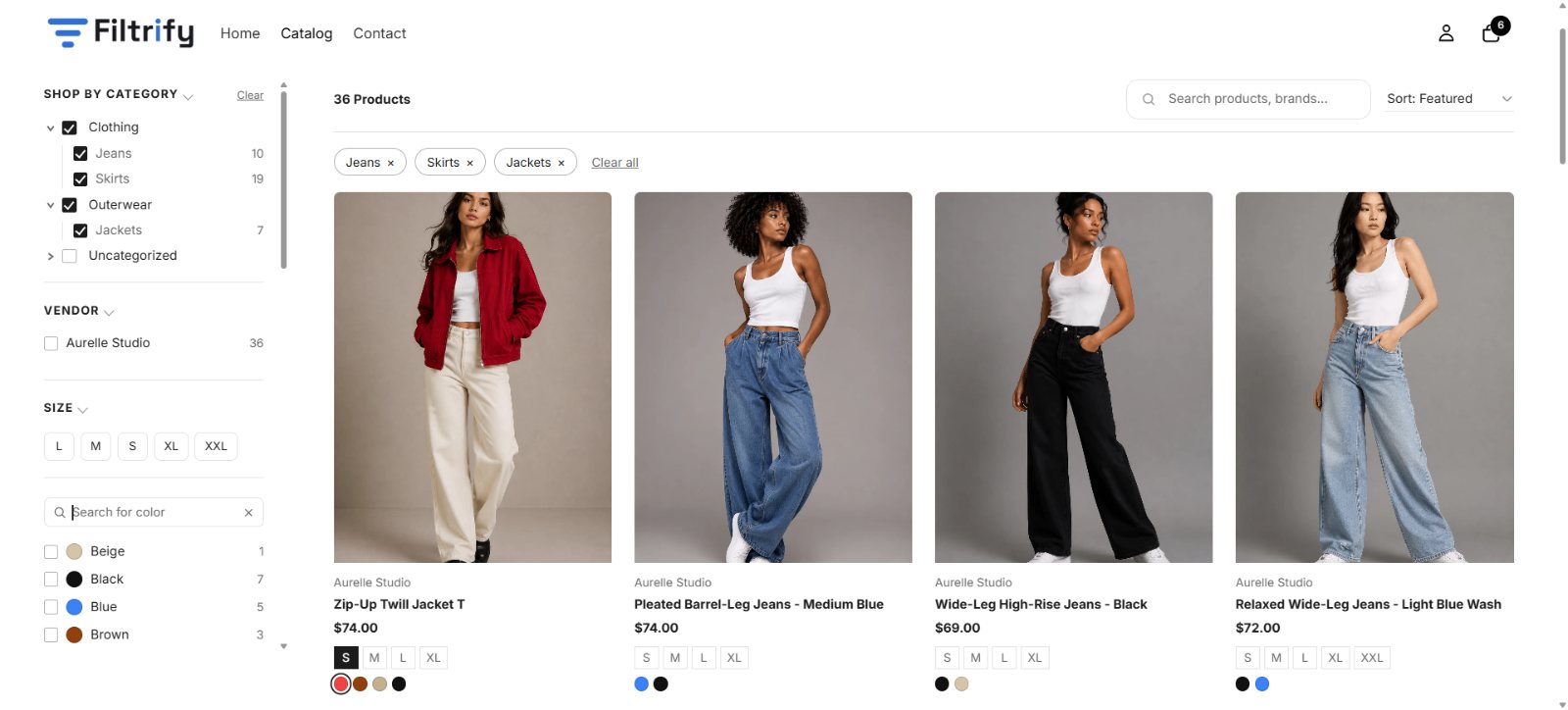
TurboFilterX only appears on collection pages (e.g. /collections/all). It doesn't change your homepage, product pages or cart.
Install in 3 steps
After installing from the Shopify App Store, open the app and the setup wizard guides you through these.
Connect the Storefront API
On the Setup screen, click Generate Storefront Token. This is one click — TurboFilterX creates the read-only token it needs to fetch your products. No copying or pasting required.
If auto-generate can't run on your store, the wizard shows a short fallback: create a token under Settings → Apps and sales channels → Develop apps and paste it in.
Add the filter to your theme
Click Open Theme Editor. In the editor: open the Apps tab and click TurboFilterX to drop it onto the collection template, then hide your theme's default Product grid (click it in the left panel → the eye icon), and click Save.
Hiding the default grid is what stops shoppers seeing two lists of products.
You're live
Return to the app and click I've activated the theme. TurboFilterX confirms it's live and syncs your catalogue in the background. Open any collection page to see it in action.
The very first product sync runs right after setup and can take a few minutes on large stores. If a collection looks empty at first, give it a moment and refresh — the grid fills in once the sync finishes.
What shoppers get
Every feature below is on by default once the block is added — no extra configuration.
Predictive search
A search bar with live suggestions as shoppers type — matches product titles, brands and more, and filters the grid instantly.
Faceted filters
Filter by category, vendor/brand, tag, size, colour and price at the same time. Counts update to show how many products match each option.
Nested categories
A category tree with parent groups and sub-categories, so shoppers can drill down from a broad department to a specific type.
Price range slider
A draggable price slider plus min/max inputs, so shoppers can narrow to a budget in one gesture.
Colour & size options
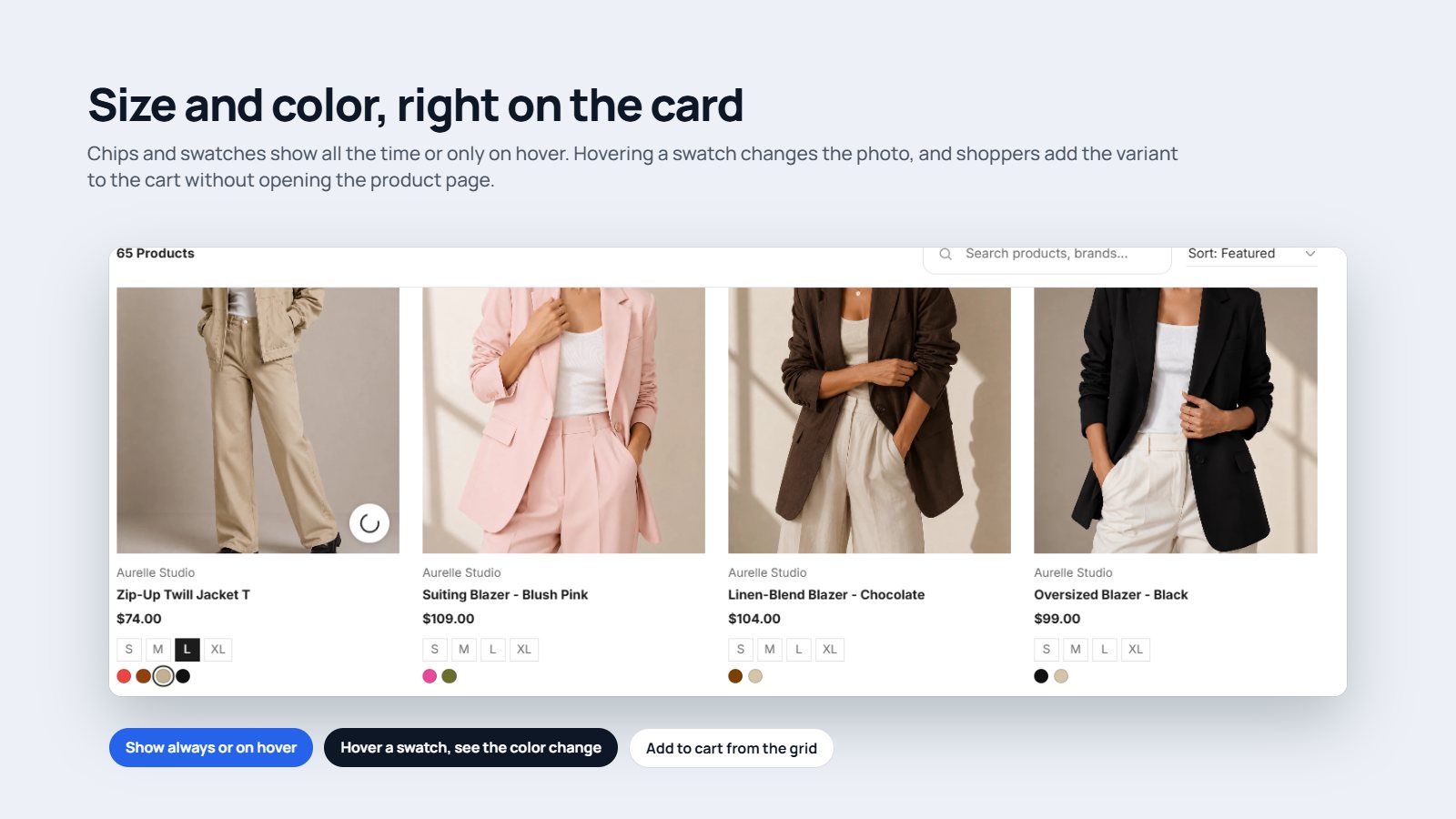
Colour swatches and size pills on each card. Hovering a colour can preview that variant's image right in the grid.
Quick view
Shoppers open a product's images, sizes and colours in a pop-up without leaving the collection page.
In-stock & active chips
An "in stock only" toggle, and removable chips showing every active filter with a one-tap Clear all.
Sort & smart paging
Sort by featured, title or price, and choose how results load: infinite scroll, a "Load more" button, or numbered pages.
Mobile-ready
On phones the filters collapse into a slide-out drawer, so the product grid keeps the full width of the screen.
Admin controls — show, hide & customise
Everything you can turn on/off or restyle lives in three tabs inside the app: Filters, Design and Sync. Here's every control and exactly where to find it.
Each tab has its own Save button. Storefront changes take effect the next time a shopper loads the collection page.
Keeping products in sync
You never have to sync by hand. TurboFilterX updates within about a minute of you creating, editing or deleting a product, and runs a full refresh once a day. To force it immediately, use Refresh now on the Filters tab — progress is shown on the Sync tab.
Plans & product limits
Every plan includes all filtering and search features — plans differ only by catalogue size.
| Plan | Products | Best for |
|---|---|---|
| Free | 500 | New & small stores trying it out |
| Starter | 2,500 | Growing catalogues |
| Growth | 10,000 | Established mid-size stores |
| Scale | 50,000 | Large, high-volume catalogues |
Development stores run on the top tier for free while you test. You'll only be prompted to pick a paid plan if your live catalogue grows past your current limit.
Troubleshooting
The most common "it's not showing what I expected" situations.
The collection page is empty or still loading
The first sync may still be running — wait a minute and refresh. If it stays empty, open the app and click Sync / Refresh now, then check that products are actually assigned to that collection.
I see two product grids
The theme's original Product grid is still visible. Go back to the theme editor, select it in the left panel and click the eye icon to hide it (step 2 above), then Save.
My custom filter isn't showing
Metafield filters are off until you turn them on. Open the app, enable the metafield, and confirm your products actually have a value saved for it — empty metafields produce no filter options.
The widget didn't appear at all
Make sure the block was added to a collection template, not the home or product template — TurboFilterX only renders on collection pages. Re-open the theme editor with the template switcher set to Collection.
FAQ
Will this slow down my store?
No. Filtering happens against a pre-synced copy of your catalogue and only the products on screen are loaded, so pages stay fast even with tens of thousands of products.
Do I need to edit any code?
No. Everything is done through the app's setup wizard and Shopify's theme editor. The one-click token and the "add block" step replace any manual code changes.
What happens if I uninstall it?
Your products and theme are untouched. Remove the TurboFilterX block from your collection template and un-hide your theme's original product grid to return to the default layout.
Does it work with my theme?
TurboFilterX is a theme app block, so it works with any Online Store 2.0 theme (Horizon, Dawn and most modern themes). It brings its own styling and adapts to your accent colour settings.
Can shoppers use it on mobile?
Yes. On smaller screens the filters move into a slide-out drawer and the grid reflows to fit, so the full experience works on phones and tablets.
Get help
If something isn't working after following this guide, reach out and include your store's myshopify.com address and which collection page you're looking at — that lets us check your sync and configuration directly.
Contact support from the Help link inside the TurboFilterX app, or reply to your installation email.